PromptCatalog Blog
The Latest Aura Photo Booth Effect: Cloud Postprocessing with Imagen for Live Events
Learn how modern aura photography systems work, then run an aura-style effect in your own booth workflow using Imagen cloud postprocessing with Breeze, LumaBooth, Darkroom, and similar software.
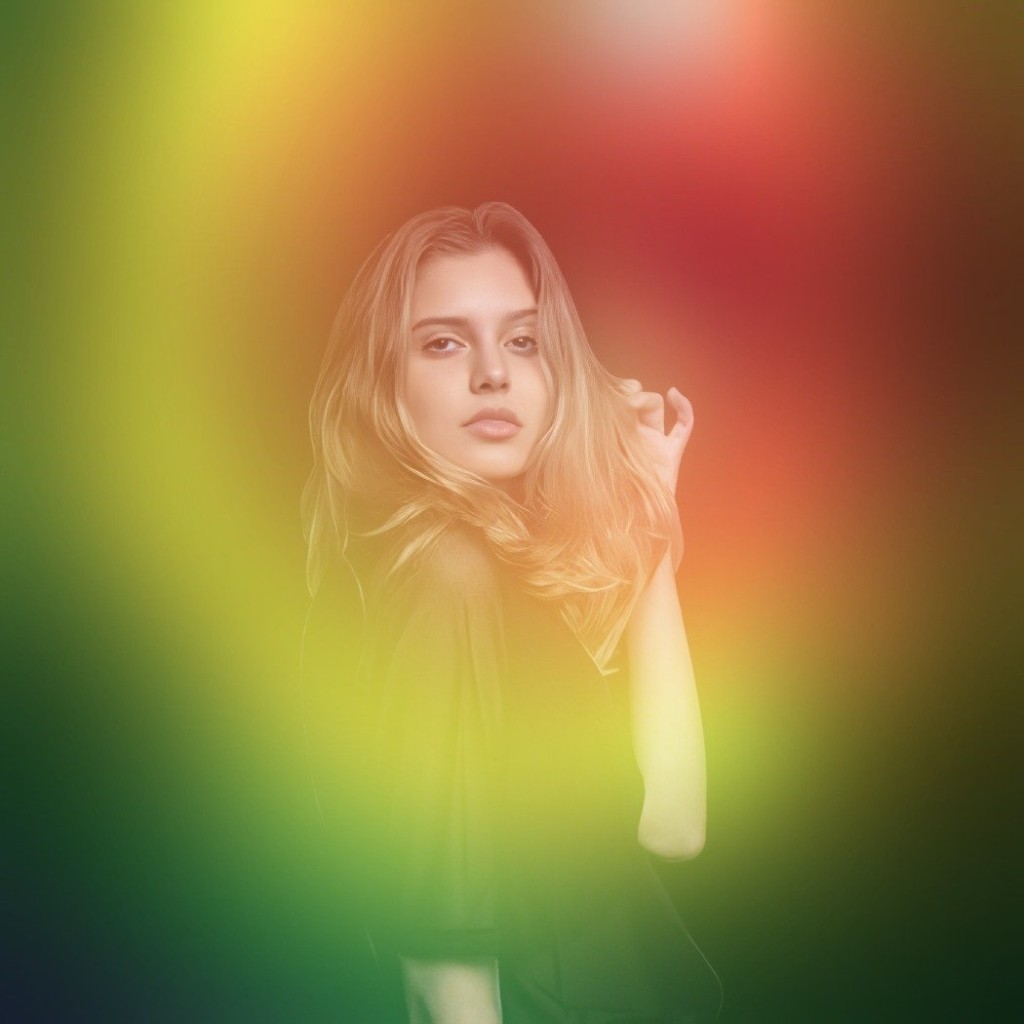
Aura-style portraits are becoming one of the most requested visual effects at events. The colorful glow reads instantly in social posts, and guests feel like they got a personalized reading plus a photo.
On classic systems, the aura look is usually created from a portrait plus sensor-informed color rendering. Historically this category traces back to Kirlian-style imaging and later aura camera systems that combine a headshot with software-generated color fields. In modern workflows, operators often recreate a similar look with cloud image processing, which is faster to deploy in booth environments. If you want background reading, the AuraCamera overview and Kirlian photography history are good starting points.
Prompt Catalog does not currently offer an Aura filter. To support this demand, we built a separate software path using Imagen cloud postprocessing so operators can generate live Aura looks during events.
Recent Aura style outputs from Imagen
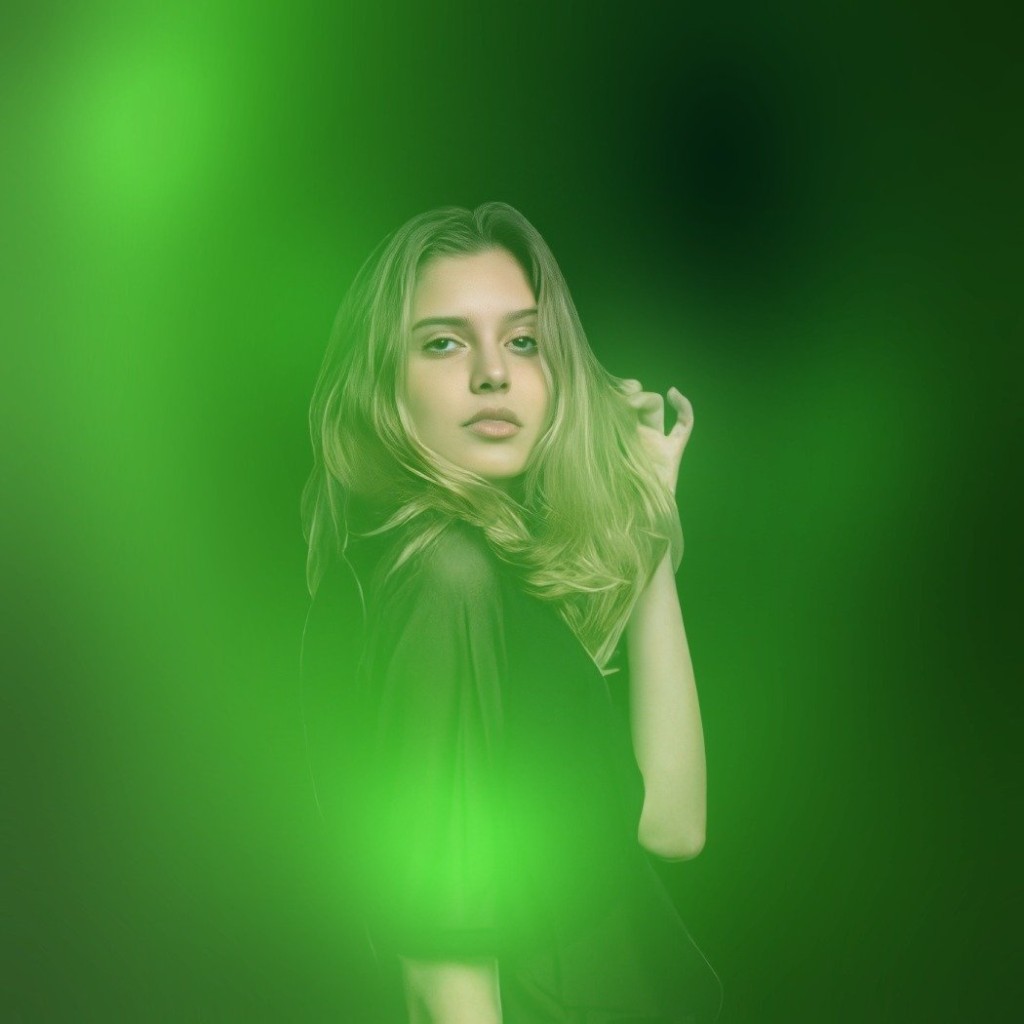
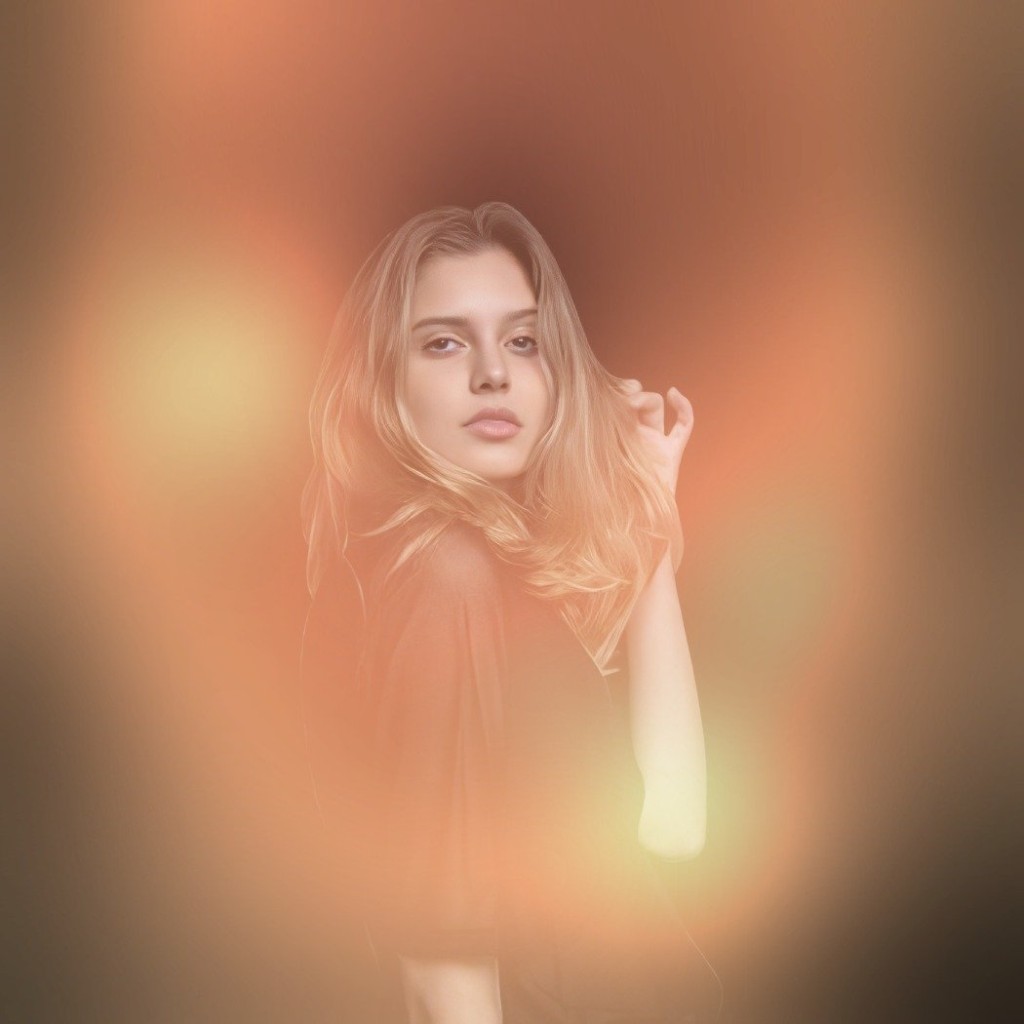
How to run live Aura images in your booth workflow
Imagen sits in your existing booth pipeline as a cloud postprocessing step. Capture the photo, send it to Imagen, receive the stylized Aura output, then return it to your sharing and print flow.
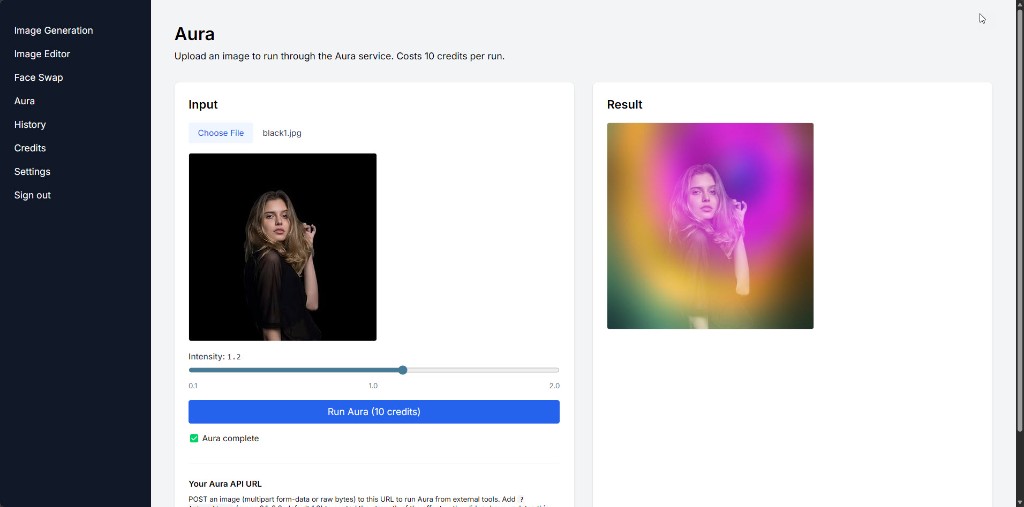
The setup is simple: after you log in to Imagen, copy your generated custom processing URL and paste it into your booth software post processing URL field. Then snap the photo and the Aura result is returned in about 2-5 seconds.
- Works with photo booth software that supports postprocessing or external processing hooks.
- Common setups include Breeze, LumaBooth (dslrBooth), and Darkroom, plus similar platforms.
- Keep your current camera and capture process; Imagen handles the cloud transformation.
- Adjust your print layout in your booth software to any design you want after the processed image returns.
For implementation details in booth software, check Breeze post processing and LumaBooth triggers/webhooks docs.
Start here: sign up for Imagen and begin creating live Aura images with your current booth stack.
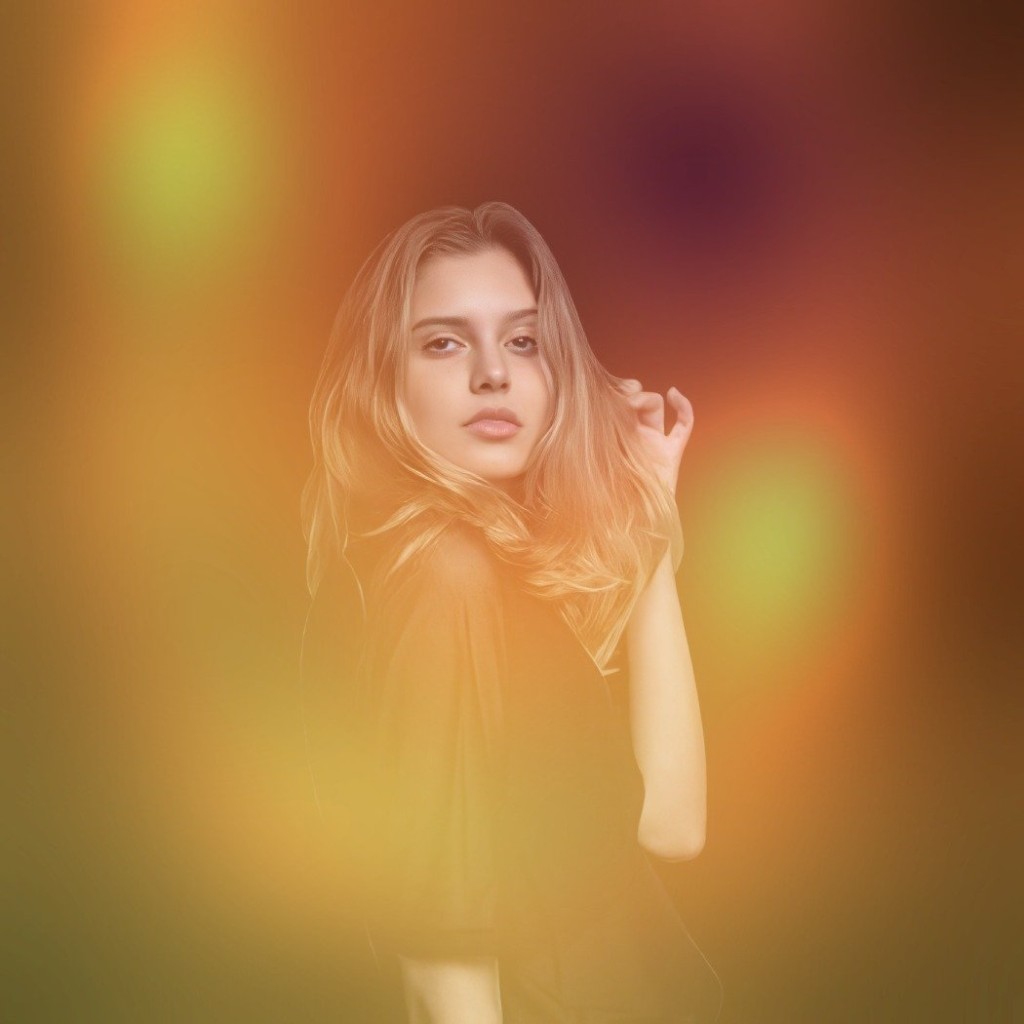
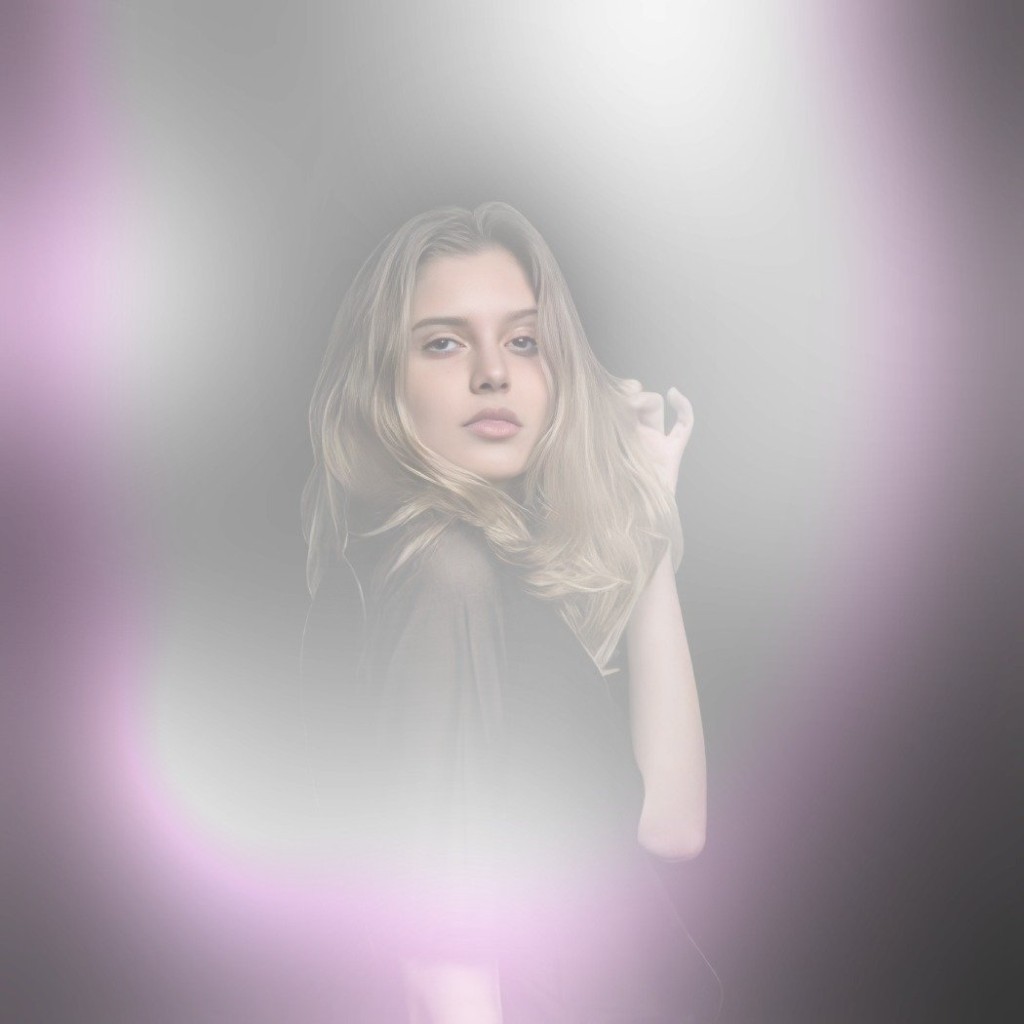
Aura looks produced from one black-background source photo
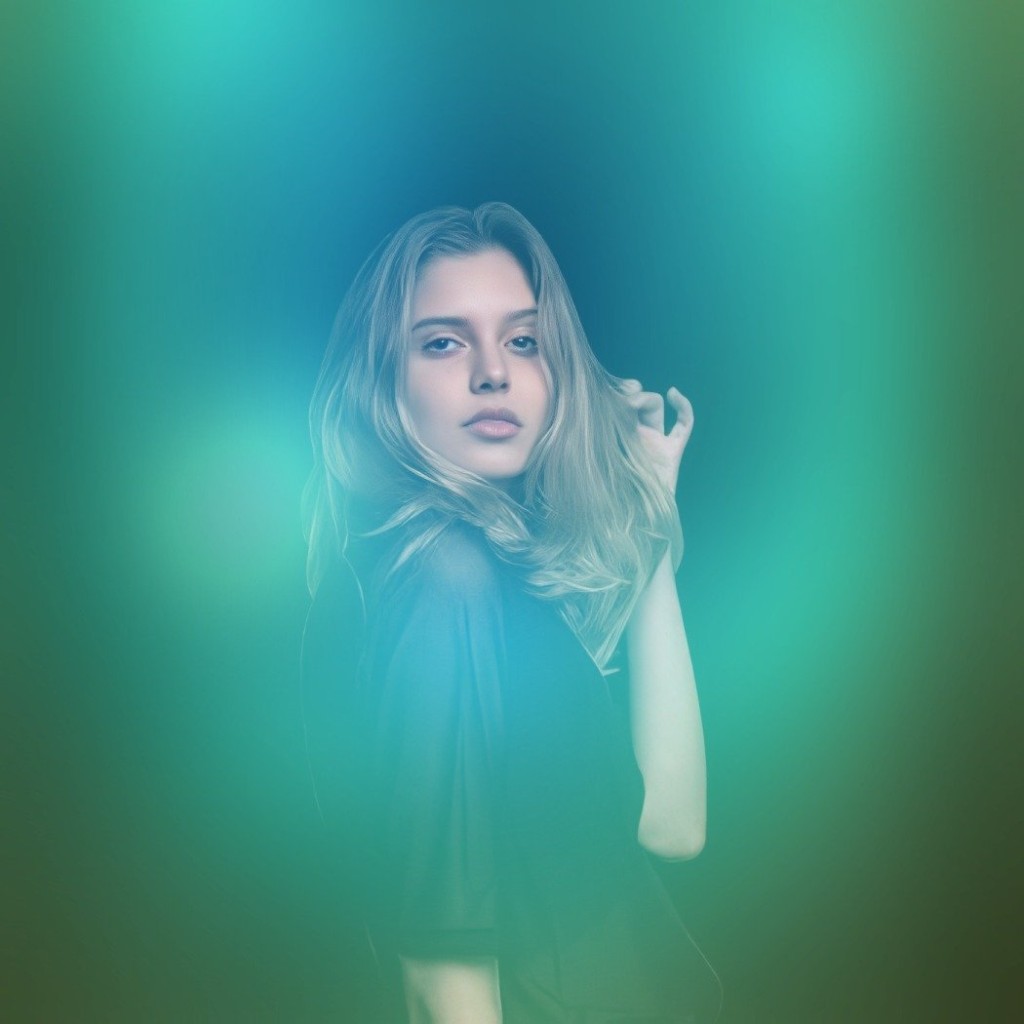
Setup tips that improve Aura output quality
- Use a black background. Dark capture backgrounds make the Aura glow cleaner and more visible.
- Keep your key light soft and consistent so the guest separation from background stays clean.
- Frame upper body shots to give the Aura room to bloom around shoulders and head.
- Prepare a printable Aura reading chart at the station so guests can map colors to meanings and share the story with friends.
Aura testing on Imagen site
Where to start this week
If Aura is already showing up in client requests, launch a test event with one station first. Use a black backdrop, print an Aura reading chart, and route captures through Imagen for live output.
Need prompt packs for other event looks while you run Aura through Imagen? Browse AI prompt sets for photo booth events and keep the rest of your menu ready to sell.